
How to Change an AI-Built Website by Pointing at It
By Yuntao Zou, Founder, VentiMap@TaoMachina
Point at the part you want changed instead of describing where it is. Most AI builders take changes as a chat message, so you spend words on "the second button under the headline" before you get to what you want. In VentiMap's Build Studio you pick the element on your page or circle the area, then say what should change. The change lands in a draft you check before anything goes live.
A disclosure first. I'm the founder of VentiMap, so weigh what follows accordingly. Every statement about other products comes from their own public pages, read on October 13, 2026.
Why describing a change in words goes wrong
Every change to a page answers two questions: where, and what. AI models are good at the what once they know the where. The where is the hard part to put into words. A page has many similar buttons and boxes, and the names in the code are not the names you see. "Make it smaller" only works if the AI picked the same thing you were looking at.
There is a second reason. An AI can design a reasonable page and still miss what you had in mind, because taste is hard to describe and easy to see. When the first version is not quite right, the fix should be quick and exact, not a longer paragraph of instructions.
How a change works in Build Studio
- Choose element: click a heading, button or section on your page. You can pick more than one for the same change.
- Circle a part: draw on a screenshot of the page to mark an area, then attach it to your message. This helps for spacing and layout, where there is no single element to pick.
- Switch between the desktop and phone size to see the page the way your customers will.
- Say what should change. The Designer, the agent that edits your page, makes the change and tells you what it did, for example that it changed one headline to another.
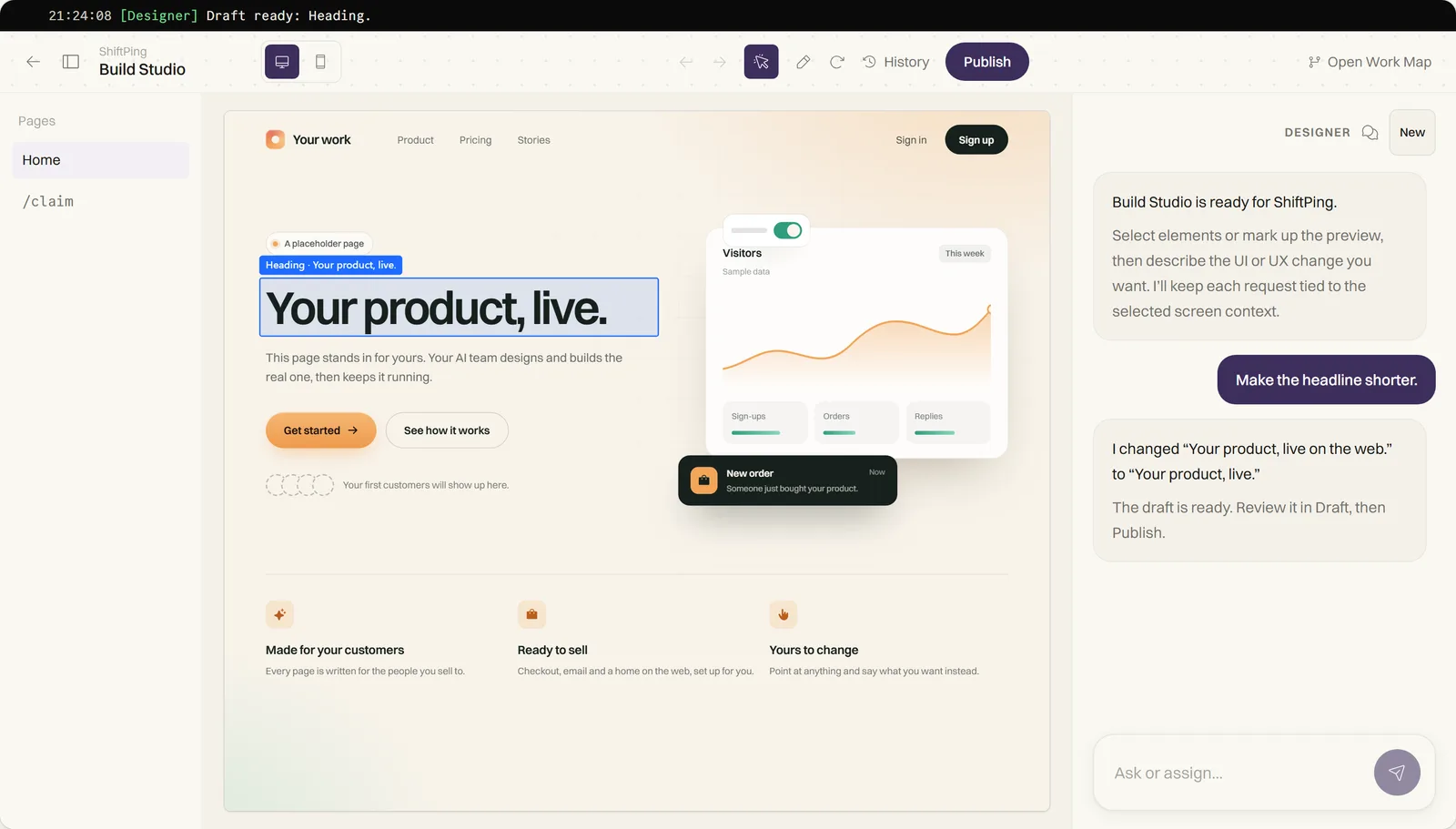
Draft first, then Publish
A change is not applied straight to your live page. It is written, checked that everything still works, and only then becomes a draft. If a check fails, your page stays as it was. You look at the draft, and when you press Publish the new version is reviewed the way a buyer would use it: the build, the page, the checkout, the storefront and any paid access. If a review holds the version back, your live page stays as it was and the draft is still there to adjust.
What it will not let you break
- A change that would move or remove something that makes buying or saving work is held back. You can still change how those parts look.
- Parts managed by the platform cannot be changed from Build Studio.
- History lists every change, newest first. "Revert to here" undoes everything after that point in a new draft, and you can undo the revert too.
- If a change cannot be finished, the Credits it used come back. AI work uses Credits at current rates.
How other tools handle hand edits
I read what each product says about editing on its own pages. Where a page did not mention something, I wrote "not described", which means I did not find it, not that it is missing.
| Point at a part | Edit by hand without AI | Cost of a small edit | |
|---|---|---|---|
| Lovable | Yes: select an element or draw on the page | Yes, for text | Text edits are free up to a daily limit; other edits use credits |
| Bolt | Yes: ask for a change on a selected element | Yes, in the preview | Editing in the preview is free; tokens are used when you save |
| Replit | Yes, in its visual editor | Yes | Direct edits use no AI credits |
| Polsia, NanoCorp, Cofounder.co | Not described | Not described | Not described |
| VentiMap | Yes: pick elements or circle an area on a screenshot | No; every change goes through the Designer | Uses Credits, which come back if the change does not finish |
App builders are ahead on one thing. If you only want to fix a typo, Lovable's free text edits are quicker than asking an AI. Build Studio is built for the changes that are hard to put in words: layout, style, a section's wording. It is also part of a business builder, so the page sits next to its checkout, emails and ads, which is why checkout is protected on every change. I compared app builders and business platforms in a separate post.
Tips for a good change
- Pick the smallest part that needs to change, so nothing else moves.
- Let the pick say where, and use your words for what: shorter, warmer, more space, the same color as the button.
- Send one change at a time. The next one can go as soon as the first is done.
- Look at the draft at phone size before you publish.
- If a change misses, open History and revert to the point before it.
A few practical questions
Can I edit text directly in Build Studio?
No. Every change goes through the Designer: you pick or circle the part and say what to change. If typing straight into the page matters most to you, app builders such as Lovable offer that for text.
What if a change would break my checkout?
It is held back. A change that would move or remove what makes buying work is not applied, and Publish reviews the new version like a buyer before it goes live. If a review fails, your live page stays as it was.
Does a failed change cost Credits?
No. When a change cannot be finished, your page stays as it was and the Credits it used come back.
Whichever tool you use, try one change you would find hard to describe, like the spacing of a section. How quickly you get there says more about the editor than any feature list.